
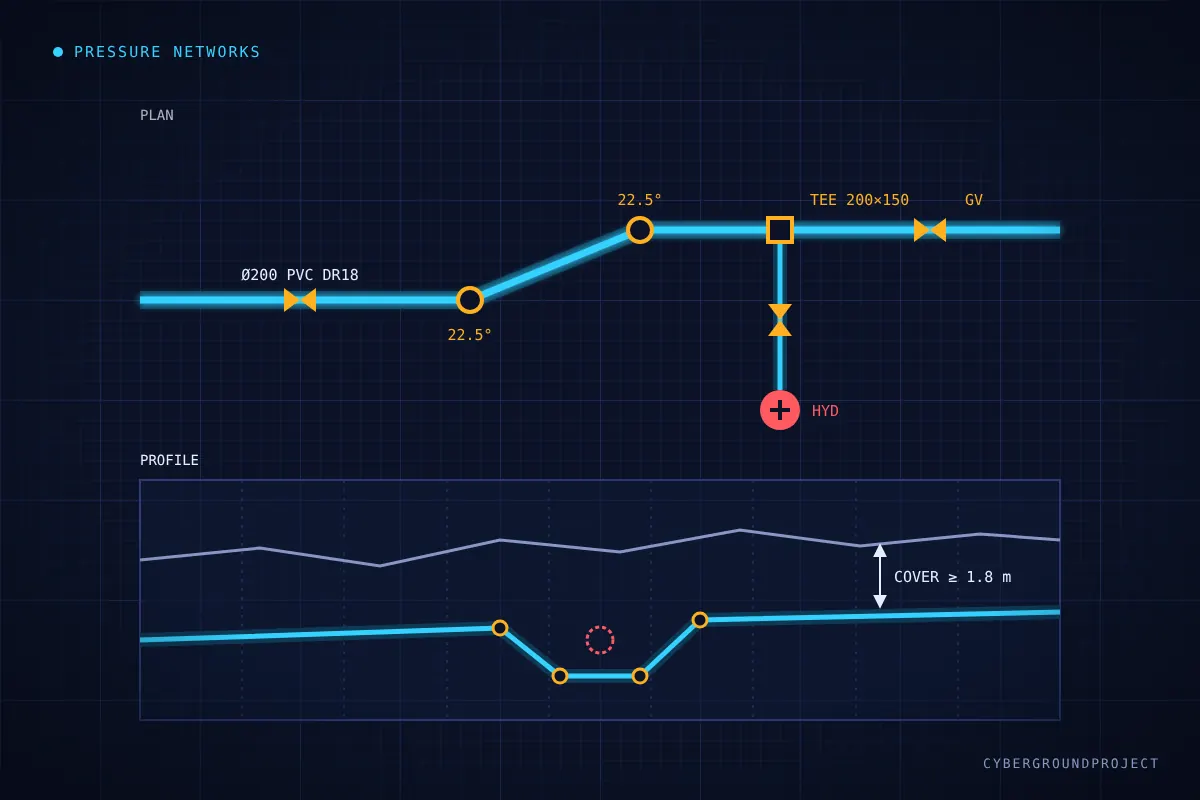
Gravity pipe networks get most of the attention in Civil 3D, but if you design water mains, force mains or gas lines, pressure networks are the tool you need. They behave differently from gravity networks: instead of pipes connected by structures, you work with pipes, fittings (bends, tees, reducers) and appurtenances (valves, hydrants), and the geometry is driven by cover and deflection rather than slope.
This article walks through the essential setup so your first pressure network goes smoothly.
1. Check the pressure network catalog
Pressure parts come from a separate content catalog (imperial or metric, usually based on AWWA or ductile iron/PVC standards). Before anything else, confirm the drawing points to the right catalog. If your organization uses a custom catalog stored on a network drive or in the cloud, make sure every user resolves the same path, otherwise parts lists will show missing sizes.
- Use the metric catalog for metric templates and the imperial one for imperial templates; mixing them is a common source of odd sizes.
- Custom fittings and appurtenances are added with the Content Catalog Editor.
2. Build a clean parts list
Pressure network parts lists live under Settings > Pressure Network > Parts Lists in Toolspace. A good parts list contains only what your project actually uses:
- Pipes: material and the nominal diameters you allow (e.g. PVC DR18, 150 to 300 mm).
- Fittings: 11.25°, 22.5°, 45° and 90° bends, tees, crosses, reducers and caps for each size.
- Appurtenances: gate valves, hydrant assemblies, air release valves.
- Assign a style to each part type so plan and profile display is consistent.
Keep the parts list in your template. Rebuilding it on every project is where inconsistencies creep in.
3. Lay out the network
You have two main options:
- Pressure Network Creation Tools: draw the main directly in plan. Set a reference surface and a cover value so the pipe follows the ground at the right depth.
- Create from object: convert a polyline, feature line or alignment into a pressure network. This is the fastest approach when the route is already drafted.
Civil 3D inserts bends automatically where the deflection requires one, based on the fittings available in your parts list. If a bend angle is missing from the parts list, you will get unexpected results, which is another reason to keep it complete.
4. Refine in profile
Add the network to a profile view to adjust the vertical layout. The profile layout tools let you lower a main under a crossing utility, add vertical bends and apply cover requirements by segment. Labels for cover, inverts and fittings make plan checking much easier.
5. Run the design checks
Pressure networks include design checks (diameter, open angle, radius of curvature and deflection) plus depth checks for minimum and maximum cover. Set them up in your template, run them before issuing drawings, and review the warnings in Prospector. They catch the classic problems: a pipe deflected beyond the joint allowance, a fitting that does not match the pipe size, or a section with insufficient frost cover.
Key takeaways
- Validate the catalog path first; it solves most “missing size” issues.
- Put a complete, project-ready parts list in your template.
- Use cover and a reference surface so the network follows the ground.
- Finish in profile and run the design checks before every submission.