
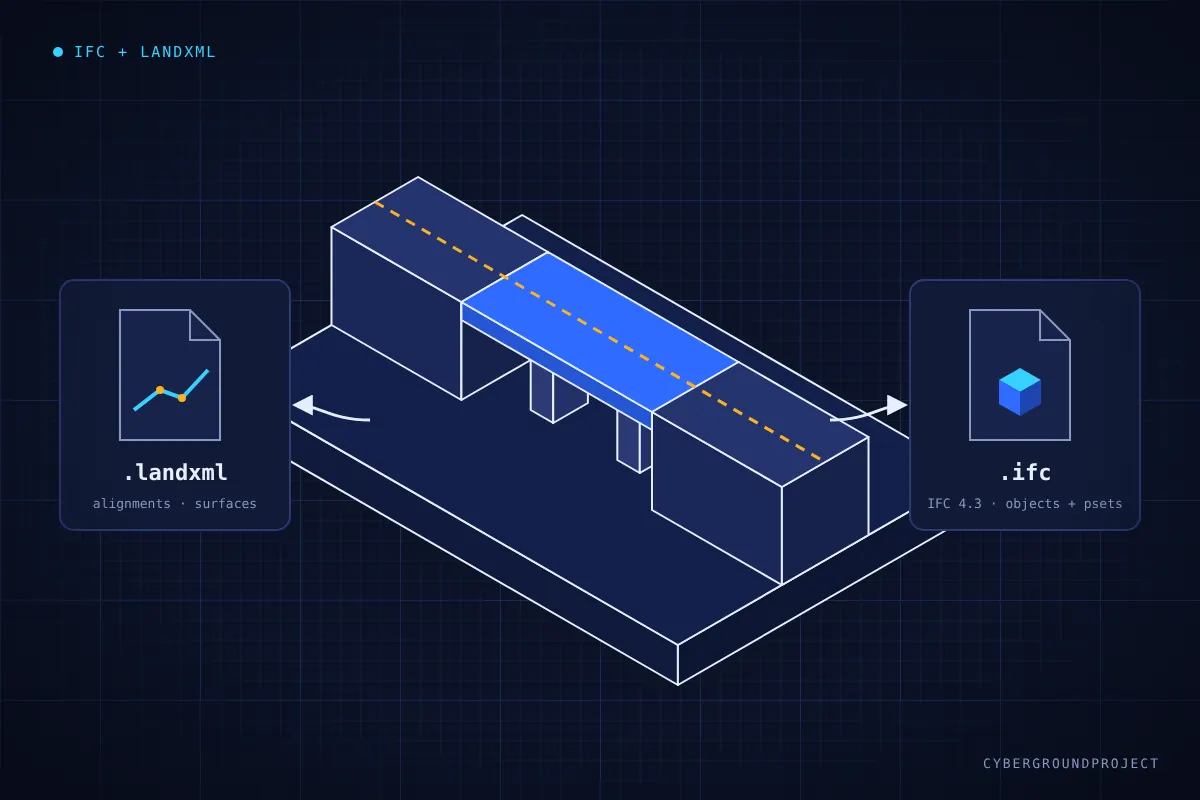
More and more clients require open formats as project deliverables. In Civil 3D, the two main ones are IFC and LandXML. They do not serve the same purpose, and choosing the right one avoids a lot of back-and-forth.
IFC or LandXML?
- LandXML carries design data: alignments, profiles, surfaces, points, parcels and pipe networks. Use it to transfer geometry to another design platform (OpenRoads, InfraWorks), to a contractor, or to machine control.
- IFC carries 3D objects with properties. Use it for BIM coordination, clash detection, model federation and openBIM deliverables. Recent IFC versions (IFC 4.3) add proper support for infrastructure: alignments, roads, bridges and earthworks.
Exporting LandXML
- Go to Output > Export > Export to LandXML.
- Select the objects to export: surfaces, alignments, profiles, pipe networks, etc.
- In the LandXML settings, check the units, the angle format, and how surfaces are written (points and faces). These settings are the main source of import problems on the receiving side.
- Name the file clearly (project, object, date) and keep one file per purpose rather than exporting everything into one.
Exporting IFC
- Prepare the model: corridor solids, pipe network solids, structures and surfaces you want in the model.
- Add property sets to the objects so the IFC carries useful data (material, diameter, station, owner). Without properties, an IFC is just geometry.
- Use the IFC export command, choose the IFC version required by the client, and map Civil 3D objects to the right IFC classes.
- Check the georeferencing: the coordinate system and base point must match the project, or the model will land in the wrong place in the federated model.
Always validate
Never send an export without opening it. For IFC, use a free viewer such as BIMcollab Zoom, usBIM.viewer or the IFC validation service from buildingSMART to check geometry, classes and properties. For LandXML, re-import the file into a blank drawing, or into the target software, and compare a few stations and elevations.
Automating exports
On large projects with many drawings, manual exports become a chore. A batch tool built with the Civil 3D .NET API can open each drawing, refresh data references, export IFC and LandXML, and email a report when done. It is a great candidate for automation; more on that in a future article.
Key takeaways
- LandXML for design data, IFC for 3D objects and coordination.
- Check units, georeferencing and property sets before exporting.
- Always validate the file before delivering it.