
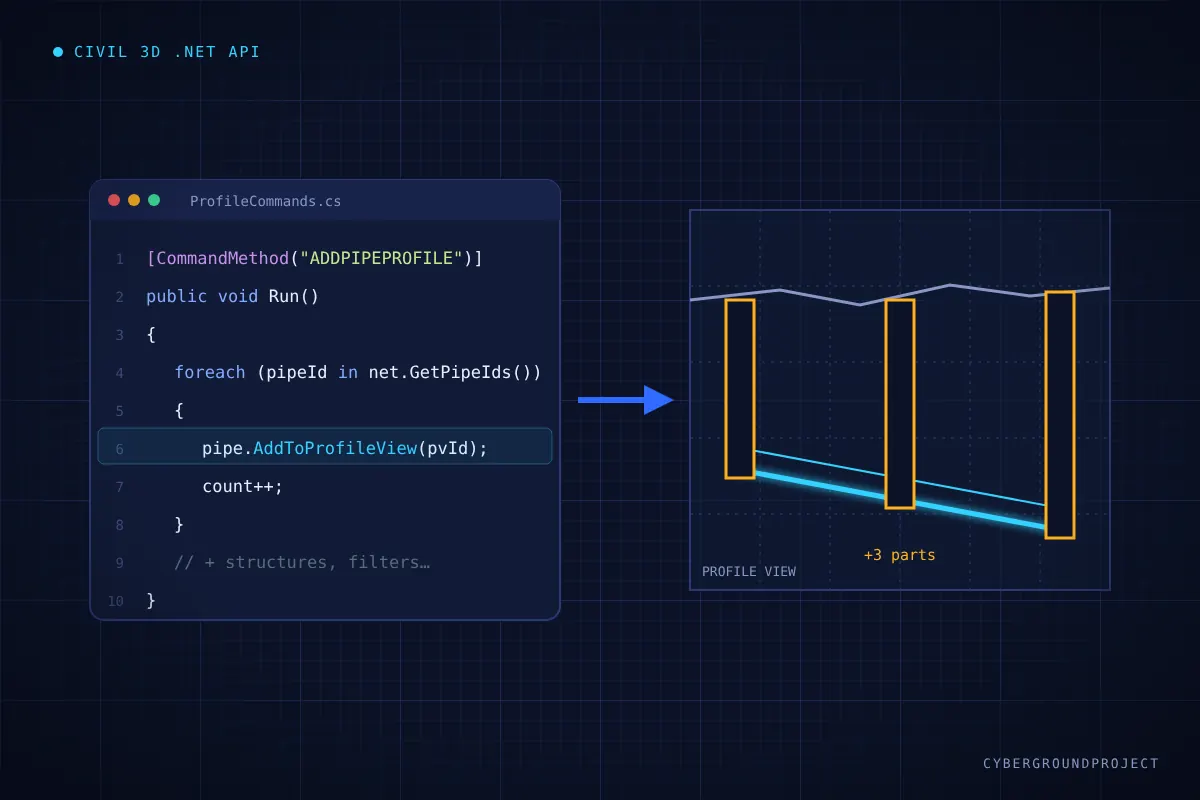
On utility-heavy projects, every profile view needs the pipes and structures that cross or follow its alignment. Doing it manually with Draw Parts in Profile View means selecting parts one by one, sheet after sheet, and it is easy to miss one. A small .NET plugin can do the job in seconds.
This is the approach behind a command I built for daily production work. Below is a simplified version you can adapt.
The key API method
In the Civil 3D .NET API, both Pipe and Structure expose an AddToProfileView(ObjectId profileViewId) method. Everything else is just finding the right parts and calling it.
A minimal command
using Autodesk.AutoCAD.ApplicationServices;
using Autodesk.AutoCAD.DatabaseServices;
using Autodesk.AutoCAD.EditorInput;
using Autodesk.AutoCAD.Runtime;
using Autodesk.Civil.ApplicationServices;
using Autodesk.Civil.DatabaseServices;

public class ProfileCommands
{
    [CommandMethod("ADDPIPEPROFILE")]
    public void AddPipesToProfileView()
    {
        Document doc = Application.DocumentManager.MdiActiveDocument;
        Editor ed = doc.Editor;
        CivilDocument civDoc = CivilApplication.ActiveDocument;

        var peo = new PromptEntityOptions("\nSelect a profile view: ");
        peo.SetRejectMessage("\nThe object must be a profile view.");
        peo.AddAllowedClass(typeof(ProfileView), true);
        PromptEntityResult per = ed.GetEntity(peo);
        if (per.Status != PromptStatus.OK) return;

        int count = 0;
        using (Transaction tr = doc.TransactionManager.StartTransaction())
        {
            foreach (ObjectId netId in civDoc.GetPipeNetworkIds())
            {
                var net = (Network)tr.GetObject(netId, OpenMode.ForRead);

                foreach (ObjectId pipeId in net.GetPipeIds())
                {
                    var pipe = (Pipe)tr.GetObject(pipeId, OpenMode.ForWrite);
                    pipe.AddToProfileView(per.ObjectId);
                    count++;
                }

                foreach (ObjectId strId in net.GetStructureIds())
                {
                    var str = (Structure)tr.GetObject(strId, OpenMode.ForWrite);
                    str.AddToProfileView(per.ObjectId);
                    count++;
                }
            }
            tr.Commit();
        }
        ed.WriteMessage($"\n{count} part(s) added to the profile view.");
    }
}
Making it production-ready
The sample adds every part of every network, which is rarely what you want. A real tool should add a few filters:
- Distance to the alignment: get the profile view’s alignment and use
Alignment.StationOffset()to keep only parts within a given offset and inside the view’s station range. - Network selection: let the user pick which networks to include (sanitary, storm, water).
- Skip parts already displayed to avoid duplicates when the command is run twice.
- Pressure networks: handle pressure pipes, fittings and appurtenances too, as utility crossings matter just as much. Check the API reference for your Civil 3D version.
- Batch mode: loop through all profile views in the drawing for a true one-click result.
Deploying it
Compile against the Civil 3D and AutoCAD assemblies matching your version (AcMgd, AcDbMgd, AcCoreMgd, AeccDbMgd), set Copy Local to false, and load the DLL with NETLOAD. For team deployment, an autoloader bundle (PackageContents.xml in the ApplicationPlugins folder) loads the plugin automatically at startup.
A few lines of C# can save hours on every utility project. Start small, then add the filters your workflow needs.