
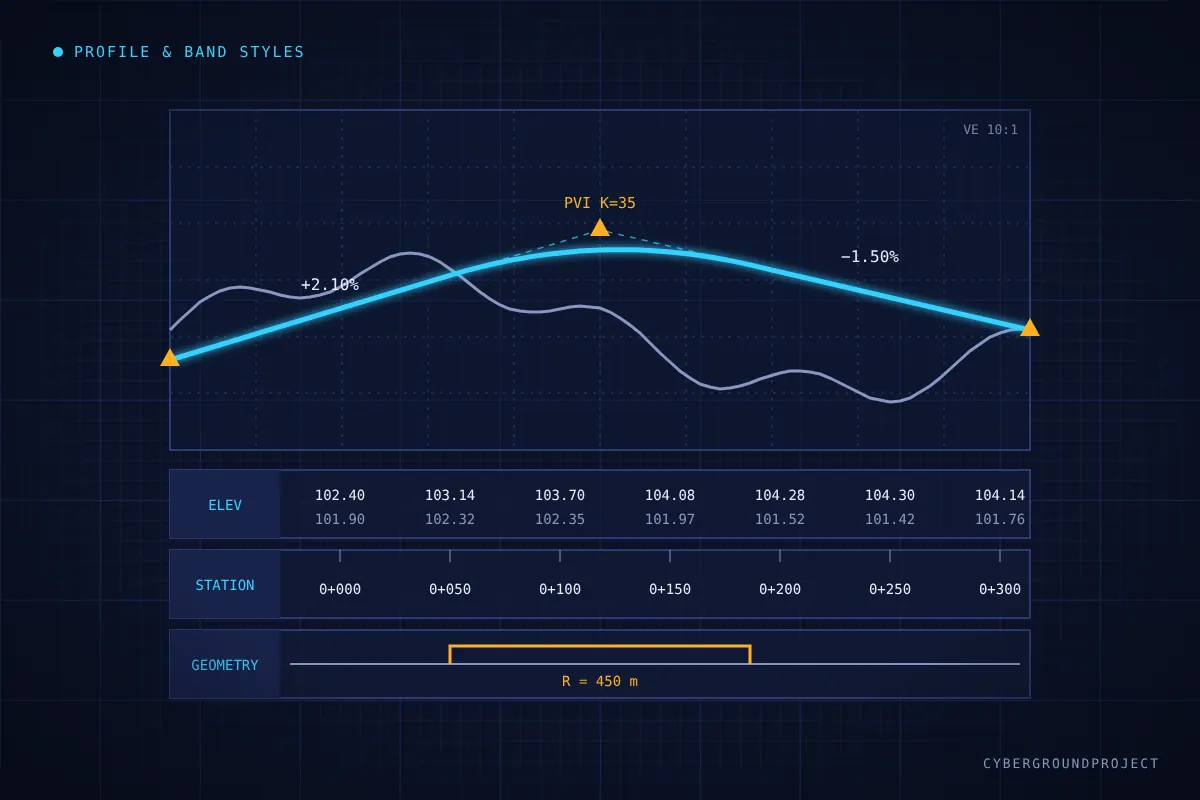
A profile sheet in Civil 3D is the result of several style families working together. When they are well organized, producing plan and profile sheets is fast and consistent. When they are not, every project starts with style cleanup. Here is how to think about them.
The four layers of a profile sheet
- Profile styles control how a profile line looks: existing ground, finished grade, ditch lines, etc.
- Profile view styles control the grid, axes, titles and vertical exaggeration.
- Band sets add data under or above the view: elevations, stations, geometry, pipe data.
- Label sets annotate the profile itself: PVIs, grades, K values, crest and sag curves.
Profile styles
Keep the list short and meaningful: Existing Ground, Existing Ground – Left/Right Offset, Design – Centerline, Design – Ditch, Layout (showing tangents, curves and PVIs for design work). Use the Display tab to control lines, curves, tangent extensions and PVI markers, and use layers rather than hard-coded colors whenever your standard allows it.
Profile view styles
The Graph tab sets the vertical exaggeration (often 10:1 for roads, depending on the client standard). The Grid, Title Annotation and Horizontal/Vertical Axes tabs control everything around it. Create one style per sheet type (full sheet, half sheet, detail) rather than adjusting a single style on every project.
Band sets
Band sets are where most templates get messy. Build a few complete sets and name them by use:
- Roadway: profile data band (existing and design elevations), vertical geometry, horizontal geometry.
- Utilities: profile data plus pipe network bands (diameter, length, slope, invert).
- Superelevation: adds the superelevation band for highway work.
Remember that profile data bands need their Profile1 and Profile2 assigned in the profile view properties. Blank bands are almost always a missing profile assignment, not a style problem.
Naming conventions
A consistent prefix structure makes styles easy to find and audit, for example [Client] - [Use] - [Scale]. Avoid personal names, dates or “Copy of” in style names. Delete the default Autodesk styles that are not part of your standard so users cannot pick them by mistake.
Keeping styles in sync
Store all styles in your template, and use reference templates to push style updates to existing drawings instead of copying styles by hand. This keeps every sheet in the project aligned with the current standard.
Key takeaways
- Think in four layers: profile style, view style, band set, label set.
- Build a few complete band sets named by use.
- Use a clear naming convention and remove unused defaults.
- Manage updates through templates, not manual copies.